Finding Your Way Around
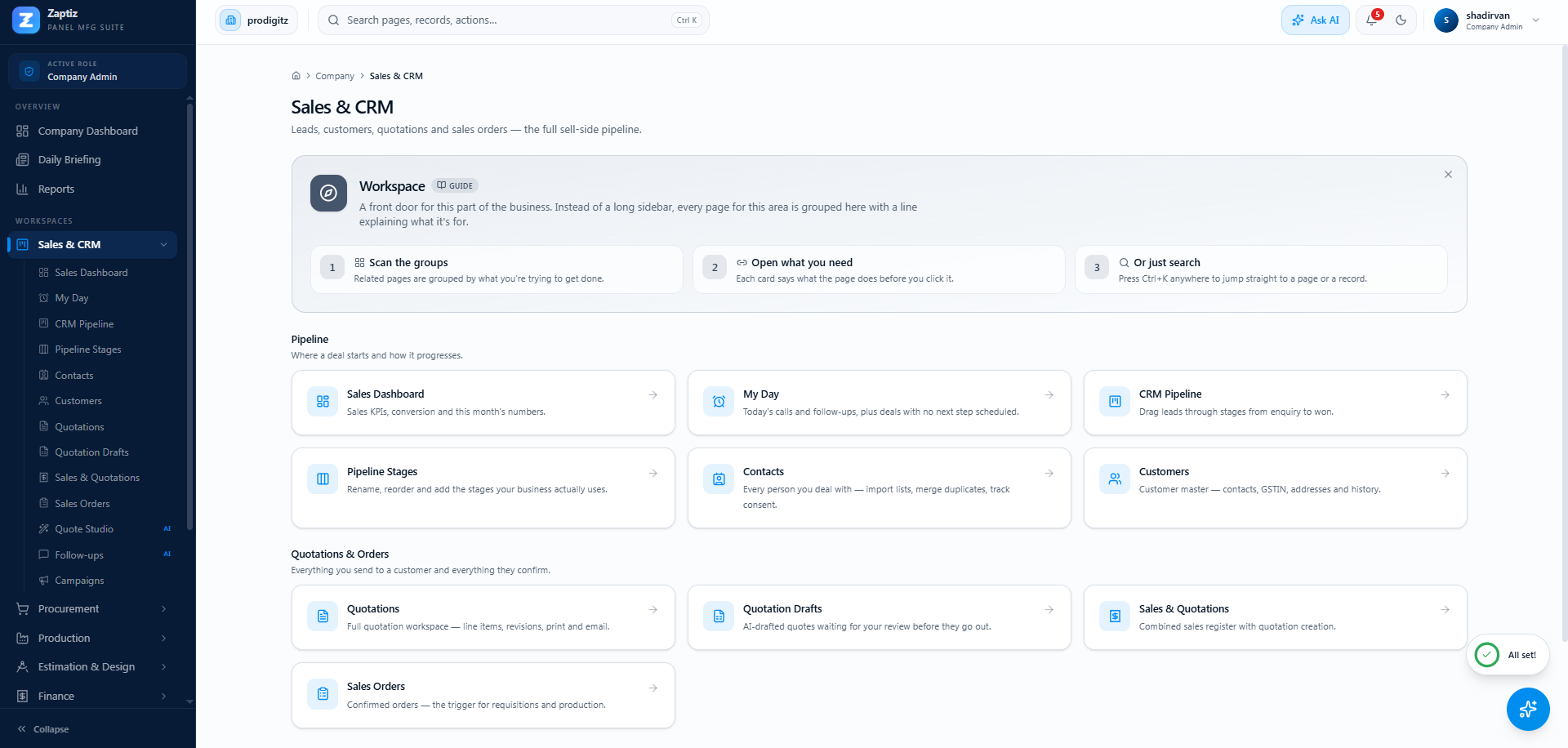
The sidebar
Your main menu, grouped by area (Sales, Procurement, Finance…). What you see depends on your role — a Sales Executive sees the sales pages, an Accountant sees finance, a Company Admin sees everything. Pages your role can't use simply aren't shown. See Roles & Permissions.
Modules your admin has switched off disappear for everyone — see Modules.
Specialist roles get a straightforward list of their pages. Company Admins get workspaces instead, because one person who owns every module would otherwise face a menu 50 rows long.
Workspaces (Company Admin)
Each business area is a single sidebar row that opens a hub page — one screen of labelled tiles covering everything in that area, grouped by what you're trying to do:
| Workspace | Covers |
|---|---|
| Sales & CRM | My Day, leads and pipeline stages, contacts, customers, quotations, sales orders, campaigns, and the sales AI agents |
| Procurement | Requisitions, RFQs, purchase orders, receiving, supplier invoices, price lists |
| Production | Work orders, shop floor, quality checks, dispatch, planning |
| Estimation & Design | BOMs, drawings, Panel Studio, costing |
| Finance | Invoices, payments, receivables, reports, GST |
| Administration | Users, security, modules, templates, email, company settings, billing |
Two ways in: click the row to open the hub, or click the chevron to expand the same list in place, so you can jump straight to a page without the hub as a stop on the way. When the sidebar is collapsed to icons, the list appears as a flyout instead.
A tile is only shown if your role may open that page and the module is switched on — a hub never advertises something that leads to Access Denied.
It's in a hub. Anything reachable from a hub is also reachable from Ctrl+K — searching for the page name is usually the fastest route of all.
Dashboards
Every role lands on its own dashboard at sign-in — Sales, Estimation, Purchase, Production, Accounts, or the company dashboard for admins. Each is a read-only morning view with KPIs and shortcuts into the working pages.
Sales has a second morning screen above the dashboard: My Day. A dashboard tells you how the month is going; My Day tells you what to do in the next hour.
Global search — Ctrl+K
Press Ctrl+K anywhere (or click the search box in the navbar) to search everything at once — customers, products, quotations, orders, invoices, jobs, vendors and more, plus every page you're allowed to open. Results respect your role and company; pick one and you jump straight to it, with the matching row briefly highlighted.
A few things that make it faster than it looks:
- Words can be in any order. "reliance quotation" finds "Quotation — Reliance Infra".
- Recent picks come back first, so the things you keep returning to are one keystroke away.
- It searches pages too — type "gst" or "guides" to jump to a screen you'd otherwise hunt for in a hub.
The AI assistant
The sparkle button opens Zaptiz AI on any page. Beyond answering questions, it's a navigator — "take me to low stock", "open my draft quotations" — and gives you deep-link buttons.
The notification bell
Live updates — payments received, jobs passing QC, agent drafts awaiting approval — arrive in the bell menu in real time. See Notifications.
Your account menu
Click your avatar, top right:
- Settings — your profile, password, MFA, notifications, theme and guides.
- Show me around — replays the walkthrough on the spot.
- Send feedback — tell us what's broken, confusing, or worth building. Always available, never throttled.
- Sign out.
Help & Support sits at the bottom of the sidebar for every role — it opens the in-app support desk, where an AI assistant answers first and a human takes over if it can't.
A few conventions worth knowing
- Amounts display Indian-style: ₹K (thousand), ₹L (lakh), ₹Cr (crore).
- Document numbers are per-company and reset yearly:
QT-2026-0001,SO-2026-0001,PO-2026-0001,JOB-2026-0001,DN-2026-0001,INV-2026-0001. - Status chips across list pages filter server-side; the search box on most lists filters the page you're looking at.
- breadcrumbs at the top of each page show where you are and click back up the tree.