Quotations
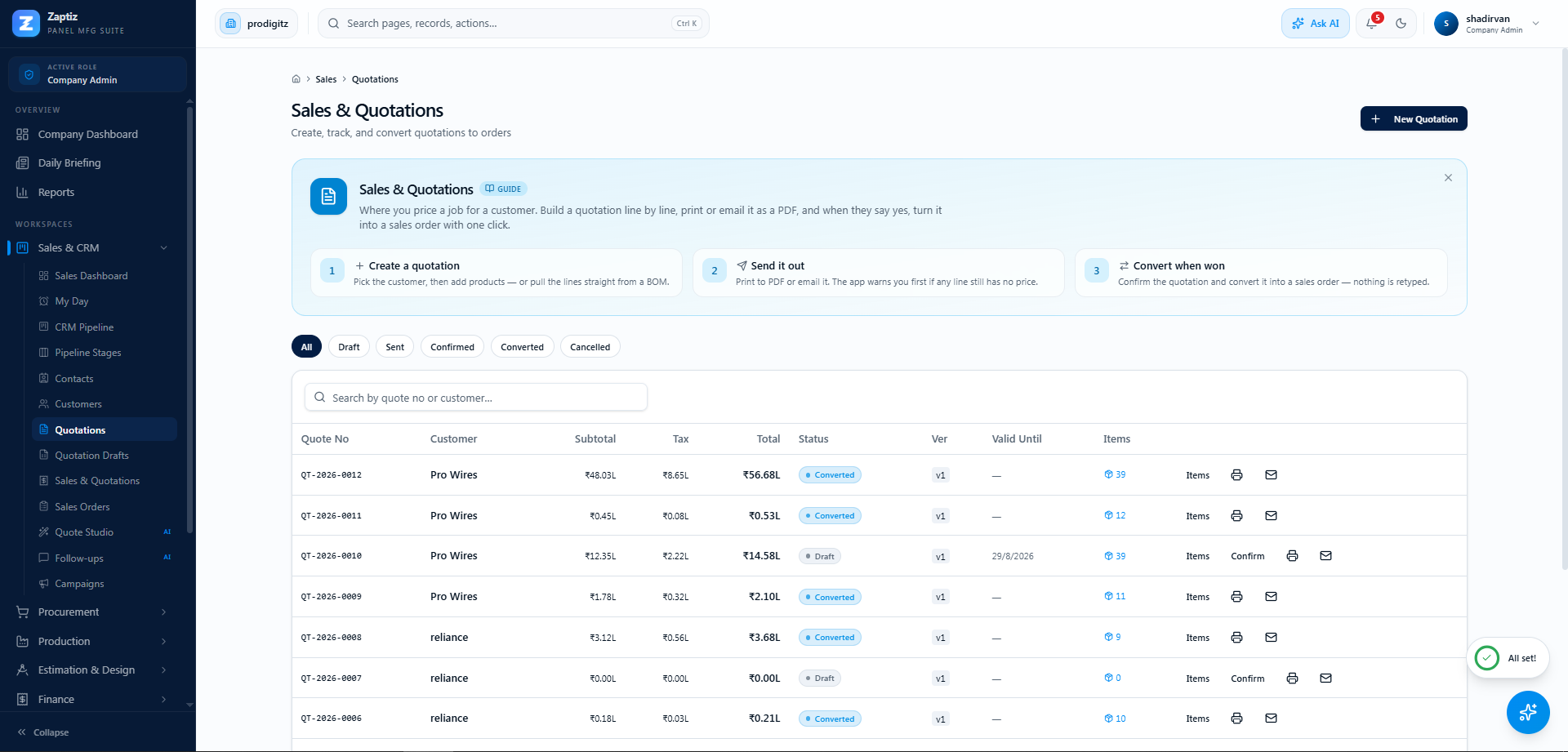
Where: Sales → Quotations (Company Admins: Sales & Quotations under Sales & CRM).
The quotation workbench — create, price, confirm, convert, print and email.
Creating a quotation
- Click New Quotation.
- Pick the Customer (required), and optionally set Valid Until, Discount %, Tax % (default 18) and internal notes.
- Click Create Quotation — a draft
QT-2026-0001is created and the Items editor opens immediately.
Building the line items
In the Items dialog:
- Pick from catalog — choosing a product auto-fills the description, unit price and GST rate — or just type a description.
- Set Qty, Unit ₹, Disc %, GST % and click Add (a live line preview shows the amount).
- Edit any line inline and save with the ✓; delete with the trash icon. Subtotal, tax and total recompute automatically.
- The collapsible AI Hints panel offers per-quotation suggestions (flagged info / warning / critical). Opening it uses AI credits.
The quotation lifecycle
| Status | Meaning |
|---|---|
| Draft | Editable. The only state where lines can change. |
| Sent | Set automatically when you email the quotation. |
| Confirmed | Approved for conversion — click Confirm (needs ≥1 line item). |
| Converted | A sales order has been created from it. |
| Cancelled | Withdrawn. |
Confirm freezes the lines
Once a quotation leaves Draft, its items are read-only. Fix prices before confirming; afterwards you'd need a new version.
Converting to a sales order
On a Confirmed quotation, click Convert to SO — a sales order is created copying all line items, and the quotation becomes Converted. Continue in Sales Orders.
Print, email & export
- Print — the print menu offers the Print Studio (preview & choose a template), quick-print with your default template, or preview in a new tab. Templates are managed in the Template Center.
- Email — opens the compose dialog (To, Cc, subject, message, attachments). Sending marks the quotation Sent. Your company's own email sender must be connected first (Company Settings).
- Both actions run the missing-price guard — a warning if any line has a ₹0/blank price.
- Admins with Zoho Books connected can export the quote as a Zoho Estimate.
For estimators
Draft quotations (including AI-drafted ones) also appear in Estimation → Quotation Drafts, where an estimator can review, confirm, print or email them.