CRM Pipeline
Where: Sales → CRM Pipeline.
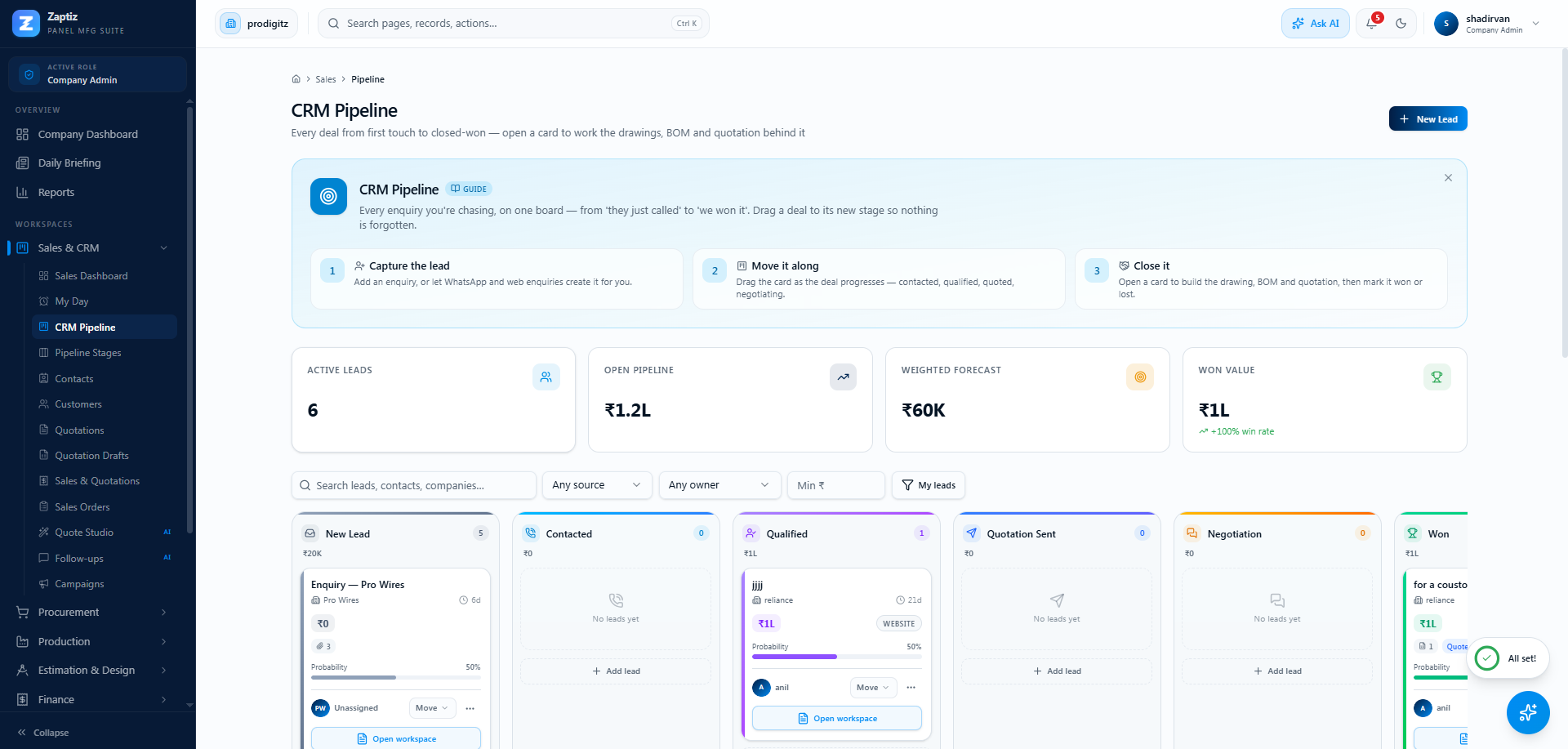
Track every deal from first touch to closed-won. Drag cards between stages — or use each card's Move menu — and click any card to open its lead workspace, where the technical work behind the deal actually happens.
The board
Out of the box: New Lead → Contacted → Qualified → Quotation Sent → Negotiation → Won, plus Lost and Dropped. Each column header shows its count and total value; each card shows the deal title, company, estimated value, source, a probability bar, and the owner.
The columns are yours to change. Rename them, reorder them, add the stage your business actually runs (a site survey, a design approval) or remove one you never use — see Pipeline Stages. Your dashboard and the follow-up agent keep working, because every custom stage declares which of the eight standard statuses it counts as.
Cards also carry small badges for how much work exists on the deal — a paperclip count for attached drawings, photos, panel designs and BOMs, a document count for quotations, and the live status of the latest quote. You can see which deals have real engineering behind them without opening anything.
KPIs across the top: Active Leads · Open Pipeline · Weighted Forecast (value × probability across open stages) · Won Value.
Finding things
The filter bar searches titles, contacts, companies and emails, and narrows by source, minimum value, or My leads. Filtering happens on the server, so the column counts and totals always reflect the whole pipeline, not just what's on screen. A busy column shows "Showing 50 of 214" rather than quietly truncating.
Creating a lead
Click New Lead (or the dashed Add lead button at the bottom of any column):
- Lead Title * — e.g. "LT Panel Supply — Reliance Infra" (the only required field).
- Company, contact name, email, phone.
- Estimated value (₹), probability, expected close date.
- Stage, source, owner, and an optional link to an existing customer.
- Notes.
Adding a lead from a specific column pre-selects that stage. Each card's ⋯ menu has Open, Edit and Delete.
The lead workspace
Click a card (or Open workspace) to reach /sales/leads/<id> — everything about one deal in one place.
Technical
This is the point of the whole page. Launch any tool from the lead and whatever it produces is filed back against the lead automatically:
| Button | Opens | What gets linked |
|---|---|---|
| Panel Photo | Panel Photo Analyzer | the analysis, and the BOM you build from it |
| Drawing | Drawing Manager | the drawing |
| Panel Studio | Panel Design Studio | the design, plus its BOM and its published drawing |
| BOM | BOM Generator | the BOM |
| AI Quote Studio | Quote Studio | the drafted BOM and the quotation |
While you're in a tool you'll see a "Working on lead: …" banner with a Back to lead button. Chains carry the link forward on their own — a Panel Studio design started from a lead puts its BOM and its published drawing on that lead too, with no extra clicks.
Attach existing links work you've already done, and is always available even if your company doesn't have the AI Suite switched on.
Unlinking an item removes it from the lead only — the drawing or BOM itself is never deleted. Items marked "No longer available" were deleted elsewhere after being linked.
Quotations
Every quotation raised against this lead, with its status, line-item count and total, plus Print and Email. A quote with no priced lines is flagged before it can go to the customer.
Activity
A timeline of everything: notes, calls and meetings you log, plus stage moves, artifacts linked, quotations created, tasks completed and follow-up emails the agent sent. Logging a note also tells the Follow-up Agent the lead is warm again. System-written entries can't be edited or deleted — that's the audit trail.
Tasks and the next step
Every deal should have one scheduled next step. Tasks created against a lead — a call, an email, a meeting, a site visit — show up on the owner's My Day, and completing one writes its outcome straight back onto this timeline.
A deal with nothing scheduled appears in My Day's Waiting on a next step list. That is the honest measure of whether the pipeline is being worked, and it's harder to fool than a stage count.
Details
The full field list, notes, and a summary of what's attached.
Creating a quotation from a lead
Click Create Quotation. Pick one of the lead's linked BOMs and you get a real, priced quotation: every product-linked BOM item becomes a line, and labour, fabrication, wiring, testing and margin are added as explicit charge lines. Set tax, discount and validity, and the dialog previews the total before you commit.
Choosing Blank quotation instead gives you an empty draft to fill in by hand.
Either way ZAPTIZ resolves the customer — using the lead's linked customer, or creating a new one from the lead's company and contact details.
Converting moves the lead to Quotation Sent, because sending a quote isn't winning the deal. The lead flips to Won automatically when that quotation is confirmed and turned into a sales order. That keeps the Won column — and your win rate — meaningful.
A lead can hold more than one quotation: raise a revision or a priced alternative and tick Create an additional quotation when prompted.
Closing a lead
Dragging a card to Lost or Dropped asks why, with one-tap presets (lost on price, went with a competitor, budget on hold, requirement cancelled, no response). The reason shows on the lead and in its timeline, so your win-rate reporting explains itself.
Keeping the pipeline honest
- Leads that go quiet are picked up by the Follow-up Agent, which drafts escalating chase emails for your approval. A lead sitting in Quotation Sent is still chased — the quote is out, but the deal isn't closed.
- An unknown number messaging your WhatsApp Business line is captured as a lead automatically, and their replies attach to that same lead.
- Set "flag as stuck after N days" on your middle stages so deals that stop moving announce themselves.
- Start each day on My Day rather than on the board. The board tells you where everything is; My Day tells you what to do.
- The Sales Dashboard shows a 5-column mini-pipeline of this same board.