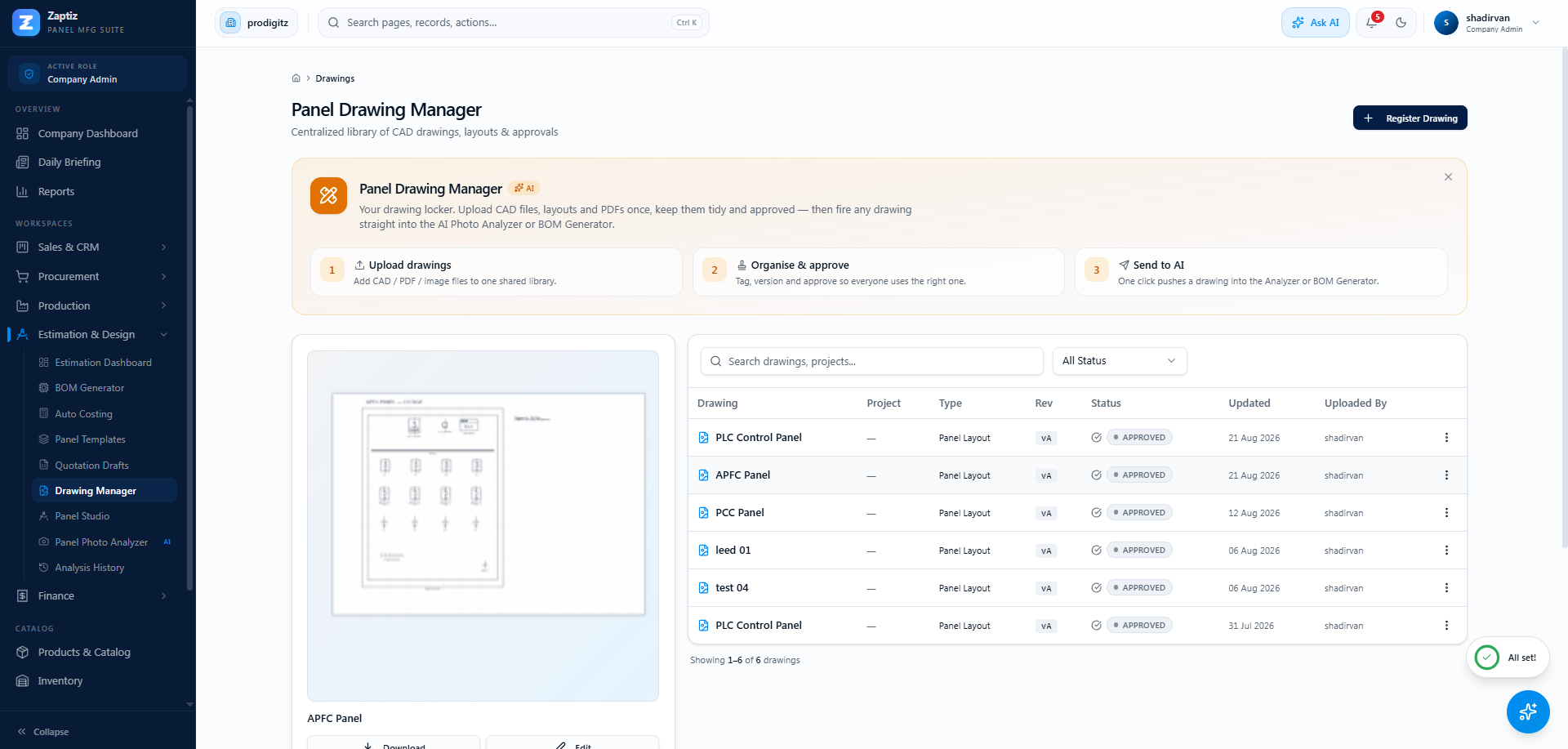
Panel Drawing Manager
Where: Estimation → Drawing Manager (also available to Sales Executives, Purchase Managers and Admins under Company → Drawings).
Your drawing locker. Upload CAD files, layouts and PDFs once, keep them tidy and approved — then fire any drawing straight into the AI Photo Analyzer or BOM Generator.
Registering a drawing
Click Register Drawing:
- Drawing Name * (e.g. "LT Panel – Main Incomer"), Drawing Number (DRG-2026-001), Revision (A), Type, Project Name, Description, Tags.
- Drawing File — an image, PDF or CAD file (DWG/DXF), uploaded or pasted as a URL.
- Visibility — who can see it.
The approval cycle
Drawings move through Draft → Under Review → Approved (plus Rejected and Archived). Use Send for Review / Mark Approved from the row menu, or the Change Status dropdown in the preview panel — so everyone builds from the right revision.
Sending a drawing to AI
From the row's ⋮ menu:
- AI Analyze Drawing — reads the components off the drawing; when done, click Create BOM, name it and pick the finished panel product.
- Use in Photo Analyzer — hands the image to the Photo Analyzer for tiered catalog matching.
Accepted for analysis: PDF, PNG, JPEG, WEBP and TIFF. A multi-page PDF schedule is read page by page — text-based PDFs are read directly, scanned ones fall back to vision. CAD files (DWG/DXF) can be stored and shared here but not analysed — publish or export a PDF for that.
Drawings registered here are also what Quote Studio's "Drawing" enquiry type and the Panel Studio's trace feature pick from.
What the analysis gives you
Components come back classified by family → standard component → subtype (e.g. Protection → MCCB → 4P) rather than as a flat list of guesses, with the specs it parsed off the drawing — rating, poles, breaking capacity — kept separate from the product it thinks matches.
Each line is then matched against your catalogue on electrical compatibility first, text similarity second, and comes back as one of three:
| Result | Means |
|---|---|
| Matched | A product in your catalogue fits the specs. Priced and ready. |
| Review | Something is uncertain — a spec that doesn't quite line up, an ambiguous label. It is deliberately not attached to a product; you decide. |
| No match | Nothing in your catalogue fits. Add the product, or price the line by hand. |
Only the lines you confirm become BOM items. Nothing is created behind your back.
Where the drawing is ambiguous the analyser preserves the ambiguity and asks, instead of quietly picking a product. A "Review" line on a 3-pole-vs-4-pole discrepancy has just saved you from ordering the wrong breaker.
Tips
- Upload the drawing before you need it in Quote Studio — its drawing picker only lists this library.
- Keep revisions honest (Rev A, B, C…) — the library is the single source of truth for which version is approved.
- Delete is permanent and lives at the bottom of the row menu in red.
- A clean single-line diagram with a component schedule analyses far better than a photographed print. If you have the source PDF, use it.