Panel Photo Analyzer
Where: Photo Analyzer in the sidebar (Company Admins & Purchase Managers: Company → Panel Photo Analyzer).
Take a photo of an electrical panel and the AI plays "spot the component" — it finds every breaker, meter and relay inside, reads their ratings, and matches each one to a real product in your catalog at three budget tiers.
Running an analysis
- Set the catalog scope first — which catalogs to match against (the public catalog and/or private ones you own). Default is public.
- Upload a panel photo (JPG/PNG/WebP, at least 800×600) — or pick a saved image from the Drawing Manager via More → From Drawings.
- Click Analyze. It runs as a background job (Queued → Analyzing → Matching products) — you can leave the page and pick it up later in History.
- When done you get the component count, an AI confidence %, the matched count, an estimate, and the credits used. A note appears if the photo quality was marginal.
Working the results
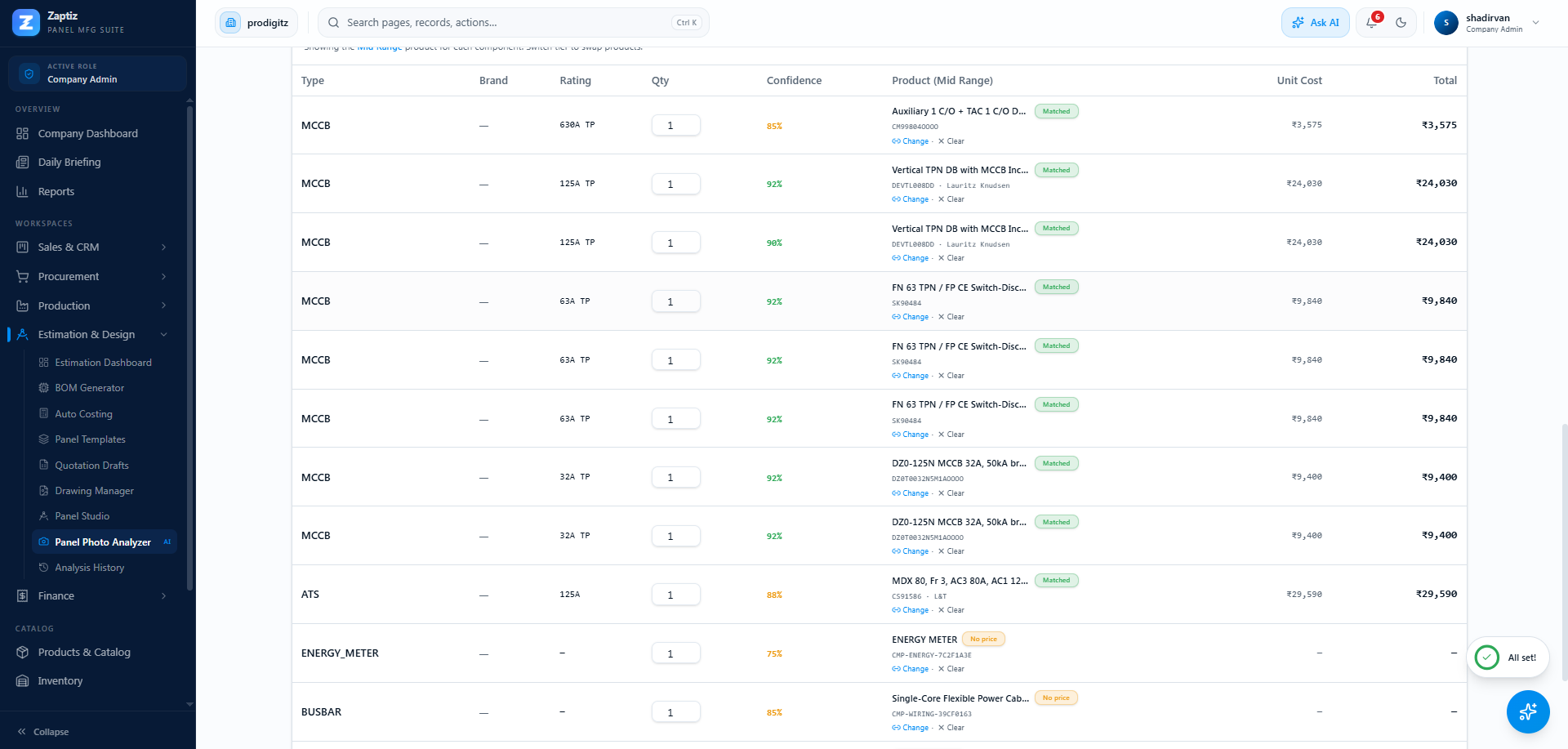
- Budget Tier — flip between Low / Mid / Premium in the sidebar. Every row's matched product and price swap live; each tier is a genuinely different brand class, not just a different price. Tune which brands belong to which tier under More → Brand Tiers.
- Detected Components table — type, brand, rating, editable quantity, confidence, the matched product for the current tier, and costs. Per row you can Change the product, Clear, Link an existing product, or Create a new catalog product inline.
- Save Analysis — keep it as a draft or saved analysis with a name and notes.
- Create BOM from Analysis — names a panel product and creates a BOM with every detected component as a line. Matched lines pin the tier product; unmatched lines are kept and flagged, never silently dropped. You land in the BOM Generator.
Re-match vs Re-run
- Re-match (More menu) re-pairs components with catalog products — free, no AI credits. Use it after changing the catalog scope or brand tiers.
- Re-run AI does a full fresh analysis — this spends credits like a new run.
Tips
- One clear, well-lit, straight-on photo beats several bad ones.
- Set scope and tiers before analysing to avoid re-work.
- Double-check quantities — vision counts identical breakers less reliably than it identifies them.
- This is the most credit-intensive feature per call — see AI Credits.