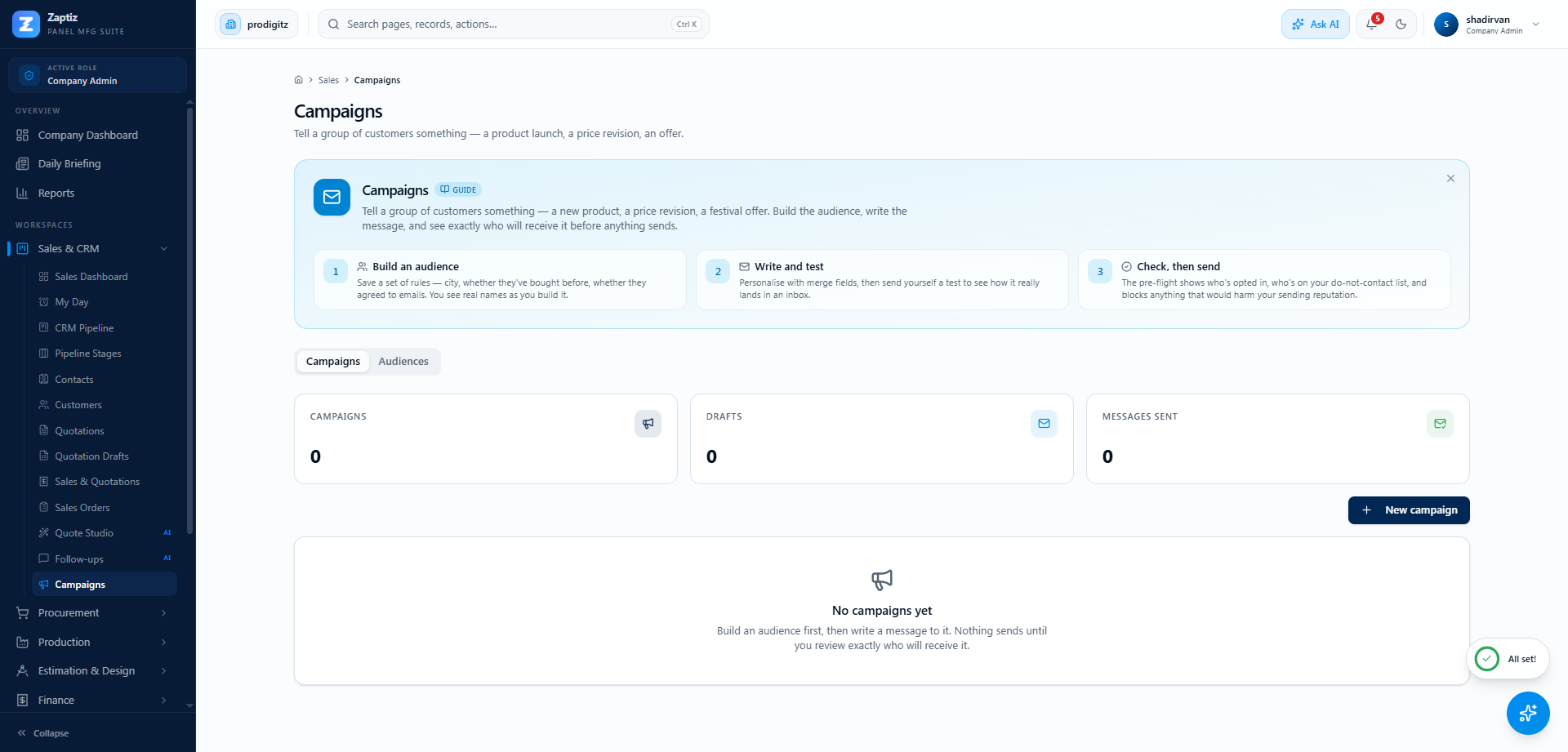
Campaigns
Where: Sales → Campaigns.
A product launch, a price revision, a festival offer, a newsletter — one message to many customers, under your own brand, with a record of who received it.
Everywhere else, a mistake affects one document and one customer. Here, one click reaches thousands of real people under your name and cannot be recalled — and a bad send can damage your ability to email anyone at all, including invoices and one-time passwords.
Everything on this page is built to slow you down at exactly the right moment. Let it.
Before your first campaign
Two prerequisites, both one-off:
- Connect your own Brevo account — Settings → Integrations → Company Email. Marketing email will not send without it. (See why below.)
- Have some opted-in contacts — people who actually agreed to hear from you.
Step 1 — Build an audience
The Audiences tab. An audience is a saved set of rules — "everyone in Coimbatore who agreed to emails and has bought before" — not a frozen list, so it stays current as your contacts change.
New audience, then:
- Choose whether to match all of the rules or any of them.
- Add rule — pick a field, an operator (is, is not, contains, more than, less than, is one of) and a value.
Fields cover both the person (consent, city, designation, has an email or phone, is a customer, how recently added) and their deals (stage, source, value, still open, won, quiet for N days).
As you edit the rules, the panel below updates live with how many people match, how many have an email, how many are opted in, and a handful of real names as examples.
Someone with three open enquiries appears once. Mailing the same person once per open opportunity is exactly the mistake that makes a company look careless to its best customers, so it can't happen here.
If a rule can't be understood it's dropped with an explanation rather than silently ignored — an audience that quietly matches nobody is worse than one that tells you which line was wrong.
No rules at all = everyone in your contacts. That is occasionally what you want, and usually not.
Step 2 — Write the message
New campaign, give it an internal name and pick the audience. You land in the composer.
- Subject and body (HTML).
- Merge fields personalise it:
{{contact.first_name}}. Always give a fallback —{{contact.first_name|there}}— so nobody receives "Hi ,". - An unsubscribe link is added automatically. It's required on marketing email and isn't optional.
Save as you go. A campaign stays editable while it's in draft or scheduled.
Step 3 — Send yourself a test
Enter your own address and Send test. Read it in a real inbox, on a phone, with images off. Merge fields, layout and the unsubscribe footer all look different there than they do in the composer.
Step 4 — The pre-flight
The Before you send card is the feature. Four numbers:
| In the audience | Everyone the rules matched |
| Opted in | Of those, who agreed to marketing |
| Do-not-contact | Of those, who bounced, complained or unsubscribed |
| Will receive it | What's actually left — this is the number on the send button |
Below them, blockers in red (the send is refused) and warnings in amber (you may proceed knowing the cost).
| Check | |
|---|---|
| No subject or no content | Blocker |
| Your company hasn't connected its own Brevo account | Blocker |
| No audience, or nobody matches it | Blocker |
| Nobody in the audience has opted in | Blocker |
| Everyone who opted in is on the do-not-contact list | Blocker |
| Audience over 25,000 people | Blocker — split it |
| WhatsApp campaign with no Meta-approved template | Blocker |
| Some people haven't opted in and will be skipped | Warning, with the count |
| Some people are on the do-not-contact list | Warning, with the count |
| A merge field would render blank for somebody | Warning, naming the field |
Re-check re-runs it. The server runs the whole pre-flight again at send time, so this preview is a convenience, not the guard — you cannot get around it by leaving the page open.
Step 5 — Send
The send button reads "Send to 1,240 people", not "Send". Then you type SEND to confirm.
A Sales Executive can build audiences and draft campaigns. Pressing the button that mails several thousand outsiders is an admin decision, and who approved it is recorded.
Sending happens in the background on a dedicated queue, so a 5,000-person campaign doesn't hold up your AI agents, notifications or imports.
Results
Once a campaign is sending or sent, the page becomes a results screen: Sent · Delivered · Opened or clicked · Bounced or failed, and a per-person table you can filter by outcome. It refreshes itself while a send is in progress.
| Status | Means |
|---|---|
| queued | Written down, not yet sent |
| sent | Handed to the provider |
| delivered | Accepted by their mail server |
| opened / clicked | They engaged |
| bounced / failed | The address is bad, or the provider refused it |
| suppressed | On the do-not-contact list — deliberately skipped, and recorded so "why did 61 people not get this?" has an answer |
Everybody in the audience gets a row, including the people who were skipped. Nothing is silently dropped.
Seeing delivery and opens
Delivery, opens, clicks and bounces come from Brevo, not from ZAPTIZ. They only appear
once your Brevo webhook is pointed at your company's unique callback URL — in Brevo,
Transactional → Settings → Webhooks, ticking delivered, hardBounce, softBounce,
spam, unsubscribed, opened, click and blocked.
If the results screen shows sends but no delivery data after a few minutes, that webhook is the reason.
The URL is unique to your company and is currently issued on request — write to support@zaptiz.com and we'll send it. A settings panel for it is on the way. Everything else on this page works without it; only the delivery, open and bounce columns depend on it.
Bounces and complaints add the address to your do-not-contact list automatically, and every future send — campaigns, the Collections Agent, the Follow-up Agent — checks it. You cannot mail a suppressed address by mistake from anywhere in the product.
WhatsApp broadcasts
The campaign engine sends on WhatsApp as well as email, and the same audiences, pre-flight and per-person tracking apply. Two extra rules come from Meta: a bulk WhatsApp message must use an approved template (free-form broadcasts aren't permitted), and the send is refused if it would exceed your number's messaging tier — the daily limit Meta assigns to your WhatsApp Business number.
The Campaigns screen currently creates email campaigns. Choosing WhatsApp as the channel is coming; until then, WhatsApp reaches customers through document sending and the agents.
Why your own Brevo account
Marketing email sends from your Brevo account or it doesn't send. Transactional mail — a quotation, an invoice, an OTP — can still fall back to the ZAPTIZ platform sender so a company mid-setup isn't stuck. Marketing cannot, for three reasons:
- Reputation. One company blasting a bought list through a shared sender would poison deliverability for everybody else on the platform, including their OTPs and invoices.
- Identity. A campaign arriving from a platform address isn't from your brand, and replies reach the wrong company.
- Cost. Bulk volume belongs against the account of whoever chose to send it.
Tips
- Send to a small audience first. Fifty of your friendliest customers will tell you what's wrong with the copy at a survivable cost.
- Warnings are information, not obstacles — but read the merge-field one. It's the difference between "Hi Ravi" and "Hi ," going to a thousand people.
- Never re-send the same campaign to chase non-openers. Build a fresh audience and a fresh campaign — a re-run only sends to people still queued, so the second attempt would reach nobody.
- Never tick the consent switch on an imported list you bought. It is the fastest way to lose your sending domain, and it takes your invoices down with it.