Purchase Orders
Where: Purchase → Purchase Orders (Company Admins: Company → Purchase).
The heart of the module: the PO list plus a full detail workspace with Line Items, Receipts and Invoices tabs.
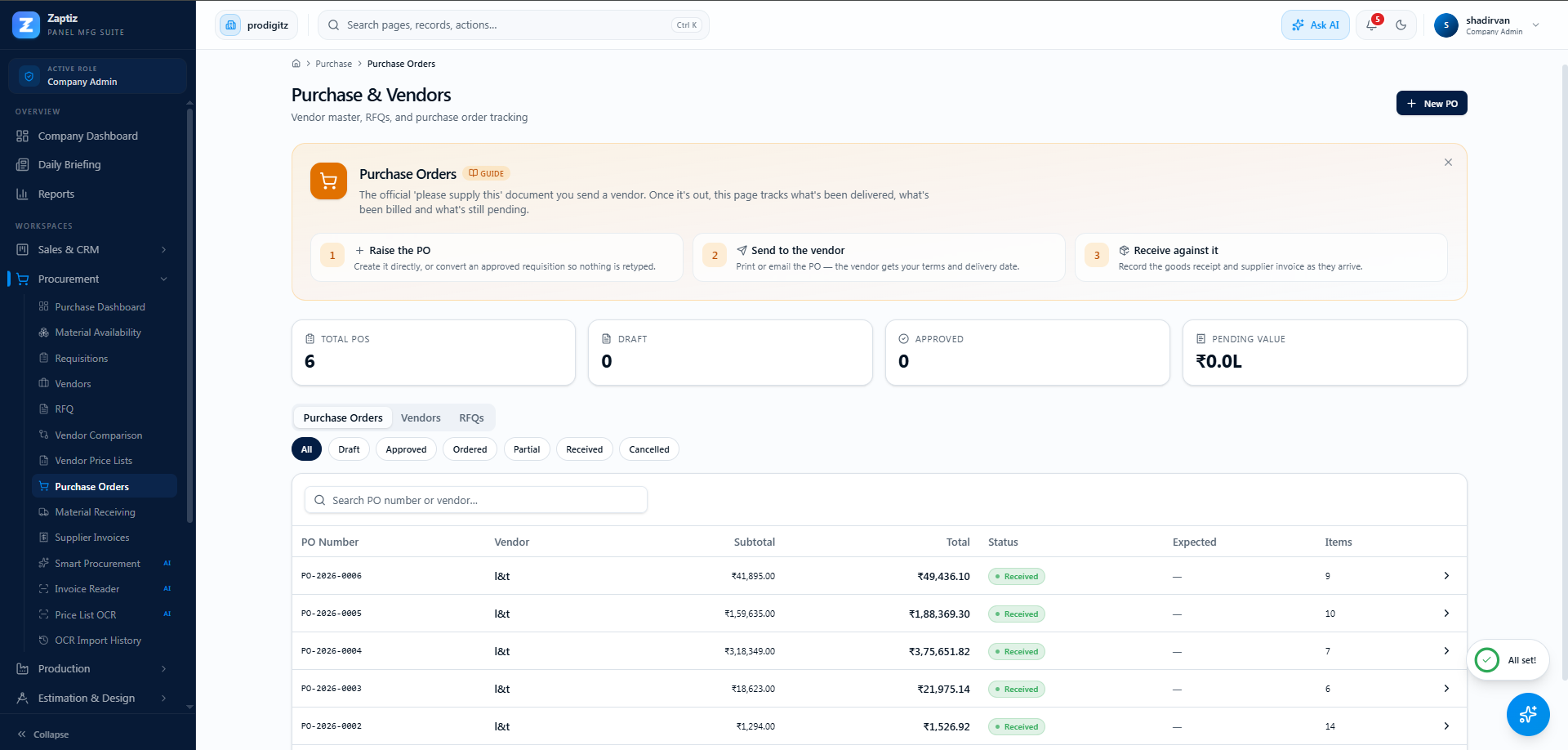
Creating a PO
Three ways:
- New PO — pick a vendor, an expected delivery date and notes; add items afterwards.
- From a requisition — the Requisitions page's Create PO (one PO per vendor).
- From an RFQ — the RFQ detail's Convert to PO.
The PO lifecycle
| Status | What you can do |
|---|---|
| Draft | Edit/add/delete line items · Approve PO · Cancel |
| Approved | Mark as Sent · Receive Items · Cancel |
| Ordered | Receive Items · Create Invoice |
| Partial | Receive More · Create Invoice |
| Received | Create Invoice |
Adding items (Draft only)
In the detail view's Add Item card: description (e.g. "MCCB 200A Schneider"), quantity, unit price, GST % (default 18), with a live line-total preview. While Draft, each row has inline edit and delete.
Adding a PO item also creates a matching product in your catalog (with an auto part number), so it can be tracked in inventory when received.
Receiving goods
Click Receive Items on an Approved/Ordered/Partial PO:
- Set the Received Date and the Warehouse (stock will be received there).
- In the "Items Pending Receipt" table, enter the Receiving Now quantity per line — capped at the pending quantity.
- Click Create GRN — a draft Goods Receipt Note is created under the Receipts tab.
- Confirm the GRN ("Confirm receipt? This will update inventory.") — this is the moment stock actually moves in and the PO advances to Partial or Received.
The Line Items table shows received progress as received/ordered per line — green when complete, amber when partial. See GRN for the standalone receiving register.
Billing the PO
From the detail view (or a confirmed GRN under Receipts), click Create Invoice:
- Creating the invoice from a confirmed GRN runs the 3-way match (PO ordered ↔ GRN received ↔ invoice billed). A clean match shows "3-way matched"; any quantity/price variance shows an amber banner listing the offending lines — review before approving.
- The invoice then flows Draft → Verify → Record Payment → Partially Paid → Paid — full details in Supplier Invoices.
The right-hand PO Summary panel keeps score: source requisition (with linked sales order / BOM), subtotal, GST, total, receipt and invoice counters, and Total Outstanding.
Print, email & sync
Print / Email the PO (document type purchase_order) with your templates — the missing-price guard warns first if any line has a ₹0 price. A Zoho sync button appears when Zoho Books is connected.