Manufacturing Jobs & Work Orders
Two closely related screens:
- Manufacturing Jobs (Production → Jobs) — the master list of production jobs.
- Work Orders (Production → Work Orders) — every operation of every job, in one place.
Manufacturing Jobs
Create a job
From Sales Order (recommended):
- Click From Sales Order.
- Pick the order — only sales orders with a linked BOM appear.
- The job (
JOB-2026-0001) is created with the product, quantity, BOM and customer carried over for full traceability.
New Job (manual): pick a product, quantity and dates. Note that a manual job has no sales order — it can never be dispatched or invoiced from dispatch, so use "From Sales Order" whenever the job is for a customer.
When a job is created, ZAPTIZ automatically:
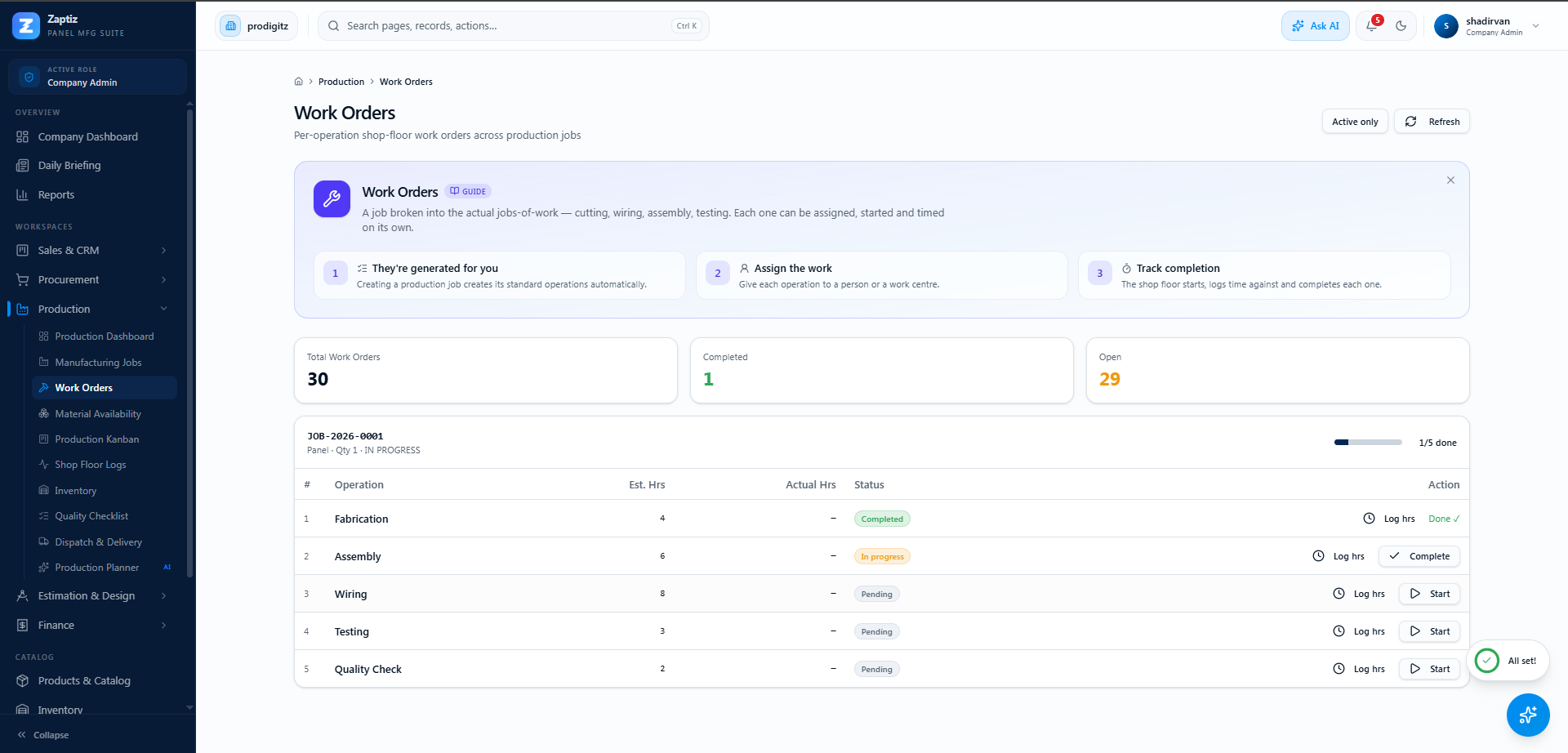
- Seeds five standard work orders — Fabrication (4h), Assembly (6h), Wiring (8h), Testing (3h), Quality Check (2h) — per-unit hours × quantity.
- Reserves the BOM materials in stock (never more than what's available), so other jobs can't double-book them.
Issue materials
On a Planned / Material Issued job with a BOM, click Issue:
- Choose the warehouse to issue from.
- Review the list — each BOM line × job quantity.
- Click Issue Materials — stock is reduced, the reservation is consumed, and the job moves to Material Issued.
Other actions on the list
- Status dropdown — inline on every row; you can jump to any of the 11 statuses (the Kanban board offers guided forward-only moves instead).
- Print — a Job Card (always available) and a Material Issue note (once materials are issued), both with print/email via your templates.
- Filter chips for every status, plus a List / Kanban tab toggle.
Work Orders
The Work Orders page groups operations by job, with a progress bar and "x/y done" per job.
| Action | When shown | What it does |
|---|---|---|
| Start | Operation is Pending | Sets it In Progress — and if the job was still Planned/Material Issued, the job starts too. |
| Complete | Operation is In Progress | Marks it done. |
| Log hrs | Always | Records actual hours (with an optional "mark as completed" tickbox). |
Log hrs overwrites
The number you type in Log hrs replaces the operation's actual hours. If you want to accumulate time across sessions, use the Shop Floor timers instead — they add elapsed time.
Tips
- The default filter is Active only — jobs that have passed QC disappear from this page until you switch to All jobs.
- Estimated hours are per-unit standards × job quantity, so they scale with big orders.
- Starting any operation is what starts the job clock (
actual startis stamped).